
Forms
Overview
Forms allow you to capture data directly from your website and automatically create opportunity cards within MiniCRM. This automation eliminates manual data entry and ensures that every lead is recorded instantly in your system.
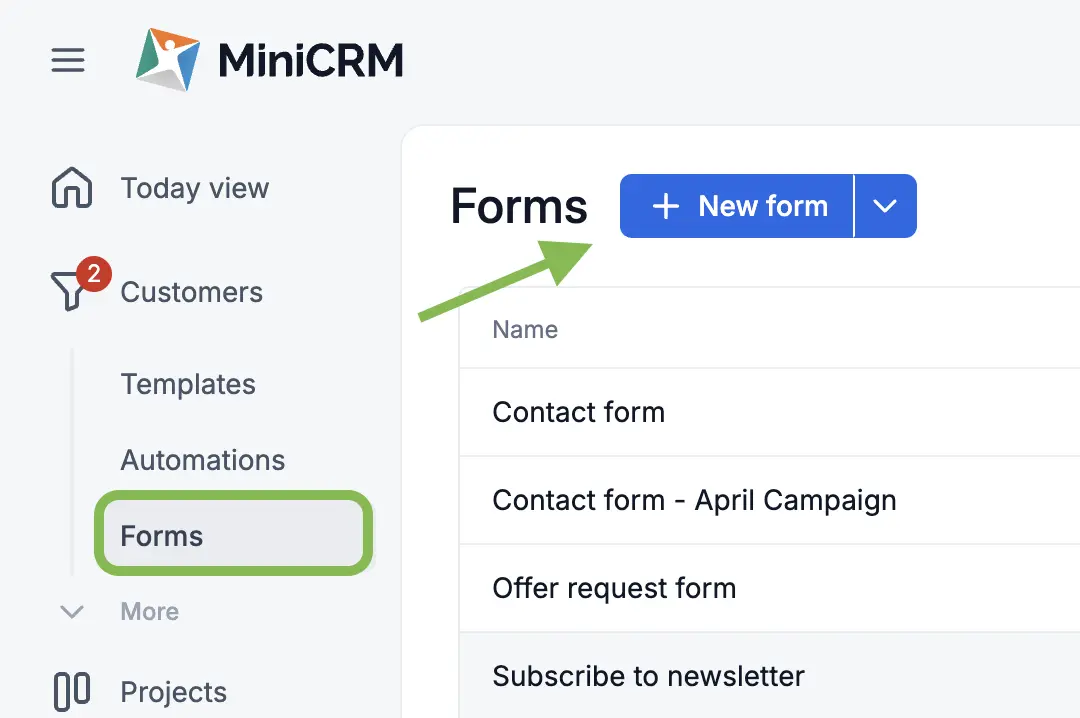
Creating a New Form
To add a new form to a specific product:
- Hover over the Product Name in the main menu.
- Select Forms from the dropdown options.
- Click the New Form button.
- Enter a name for your form and click save to open the configuration editor.
Configuration and Settings
The settings panel on the right allows you to define how the system processes incoming submissions:
- Status: Choose the pipeline status where new leads will be placed upon submission.
- Identified Action: Select the identification method (Email or Phone). You can choose to create a new card for every submission or update existing cards.
- Thank You Page: Set the URL where users are redirected after they click “Submit.”
- Confirmation Email: Configure an auto-responder email to be sent immediately to the user.
- Notifications: Assign a system user to receive an email alert whenever a form is completed.
- Double Opt-in: Enable a confirmation mechanism where leads must click a link in an email to activate their data.
Managing Form Fields
You can customize the information you collect by managing the fields on your form:
- Adding Fields: Click “Add Field” to select existing CRM fields (e.g., Name, Company, Industry).
- Mandatory Fields: Mark specific fields as required. Note that the First Name field must be present for the system to create a new card.
- Hidden Fields (Fixed Value): Assign data to a lead automatically without showing the field to the user (e.g., setting a “Source” field to “Website”).
Form Integration
Once your configuration is complete, you can place the form on your website:
- Navigate to the Appearance or Code section within the form editor.
- Copy the generated HTML code snippet.
- Paste the code into your website’s editor where you want the form to appear.
GDPR Compliance
Standard forms include a built-in feature to manage the Agreement for Processing Personal Data. You can add mandatory consent checkboxes and link to your privacy policy to ensure all lead generation stays compliant with data protection regulations.