
Newsletters that Sell (Safe & Simple)
Turn attention into action.
Sending a newsletter isn’t just about “marketing.” It’s about getting a result: a reply, a booking, or a sale.
In Europe, strict privacy rules can make mass emailing feel scary. MiniCRM handles the legal safety net automatically. We ensure you stay compliant so you can focus on the message.
Here is how to send a campaign that converts, without landing in the spam folder.
Part 1: The “Green Light” Rule (Compliance)
Job to be Done: Protect your reputation and ensure delivery.
MiniCRM has a Zero Tolerance Spam Policy. If you spam, you get blocked. If you follow the rules, we fight to keep your delivery rates high.
✅ WHO you can email (Green Light)
- Opt-ins: People who ticked a box or filled a form asking for updates.
- Customers: Existing clients (where local laws allow formatted updates).
- Leads: People who asked for a quote or guide.
❌ WHO you cannot email (Red Light)
- Purchased Lists: Never do this. It is illegal under GDPR.
- Copied Addresses: People you found on LinkedIn or public websites who didn’t ask to be emailed.
- Old contacts who haven’t heard from you in years.
The Rule of Thumb: If you aren’t sure they said “yes,” assume they said “no.”
The MiniCRM Promise: If you follow the rules, we ensure high delivery rates. If you spam, we block the account to protect the honest users.
Part 2: Sending a Campaign that Converts
Send a relevant message that makes people click.
Step 1: Filter (Don’t “Spray and Pray”)
Relevant emails get opened. Generic emails get ignored.
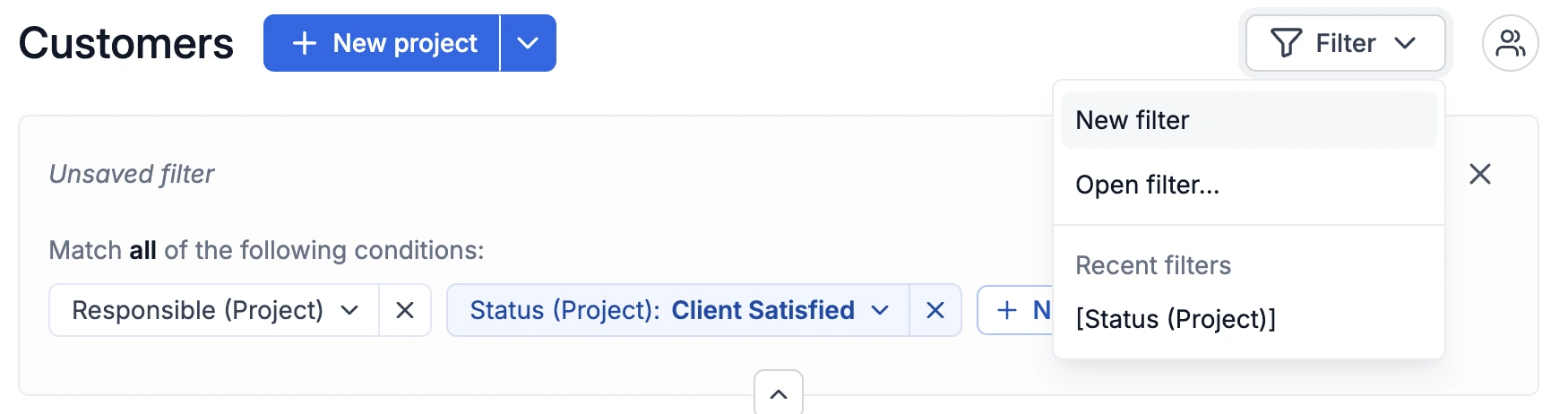
- Go to Contacts.
- Click Filter.
- Select a specific group (e.g., “Status = Active Customer” OR “Tag = Interested in Workshop”).
Step 2: Write for Action
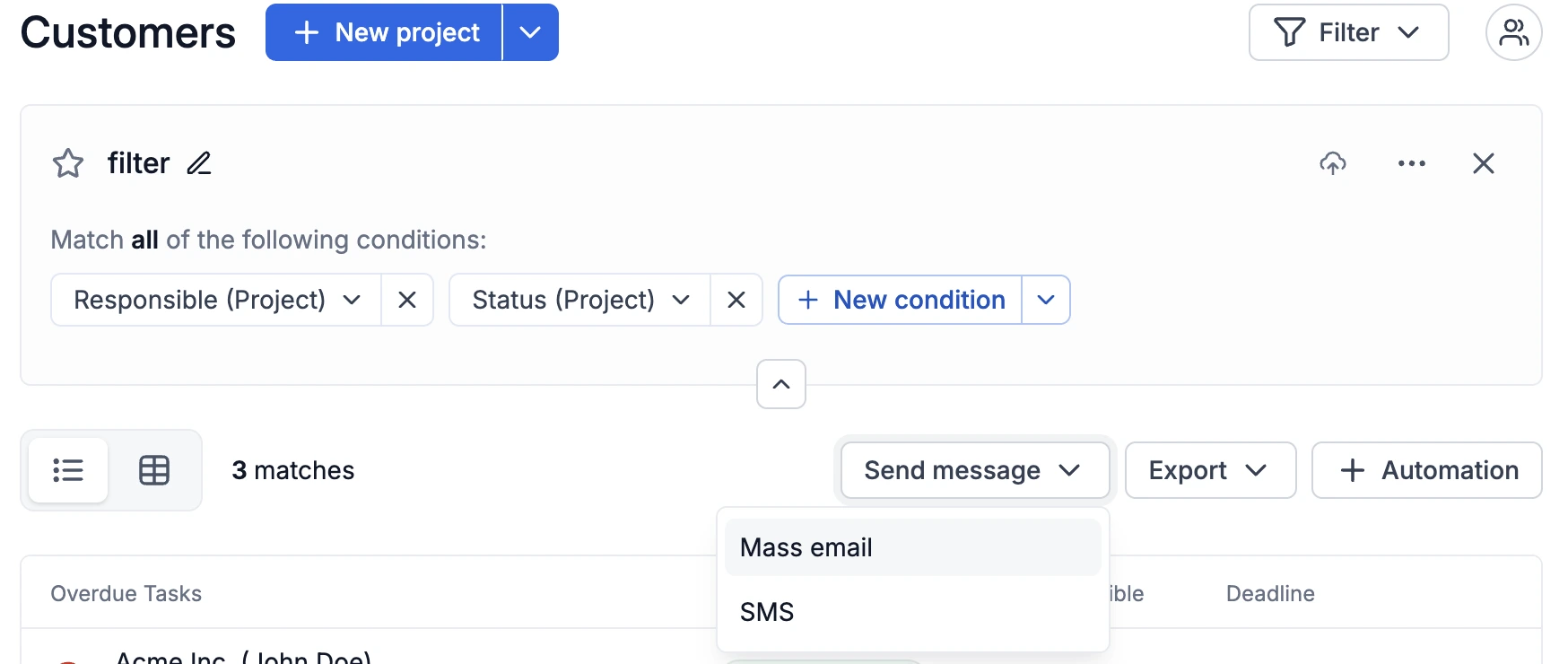
Now, select your contacts and click the Email icon. Crucial Step: Switch the mode from “One-to-one” to Bulk Email (or “Newsletter”). This activates the legal tracking and unsubscribe links.
3 Rules for High Conversion:
- One Goal: Don’t ask them to read a blog AND buy a product AND follow you on Facebook. Pick one thing.
- The “Benefit” Subject Line: Don’t write “October Newsletter.” Write “How to save 10 hours this week.”
- One Button: Make your Call to Action (CTA) big and obvious. “Book your call” or “Get the discount.”
Step 3: Test & Send
Broken links kill sales.
- Click Send Test Email to yourself.
- Check it on your phone. (Most people will read it there).
- If the link works and the button is visible, click Send.
Pro Tip: MiniCRM sends in the background. You can close the window; we handle the queue.
Part 3: The “Exit Door” (Unsubscribing)
Keep your list healthy and legal automatically.
In the EU, the right to unsubscribe is mandatory. A smaller, engaged list converts better than a huge, annoyed one.
The Automatic Safety Net
Every “Bulk” email automatically includes an Unsubscribe link at the footer.
- Do not remove this. It protects your domain reputation.
- If they click it, MiniCRM automatically unchecks their “Newsletter” box. You don’t have to do anything.
Manual Unsubscribe (The “Please Stop” Reply)
If a client replies asking to stop:
- Open their Contact Card.
- Find the Newsletter / Bulk Email checkbox.
- Uncheck it.
- Save.
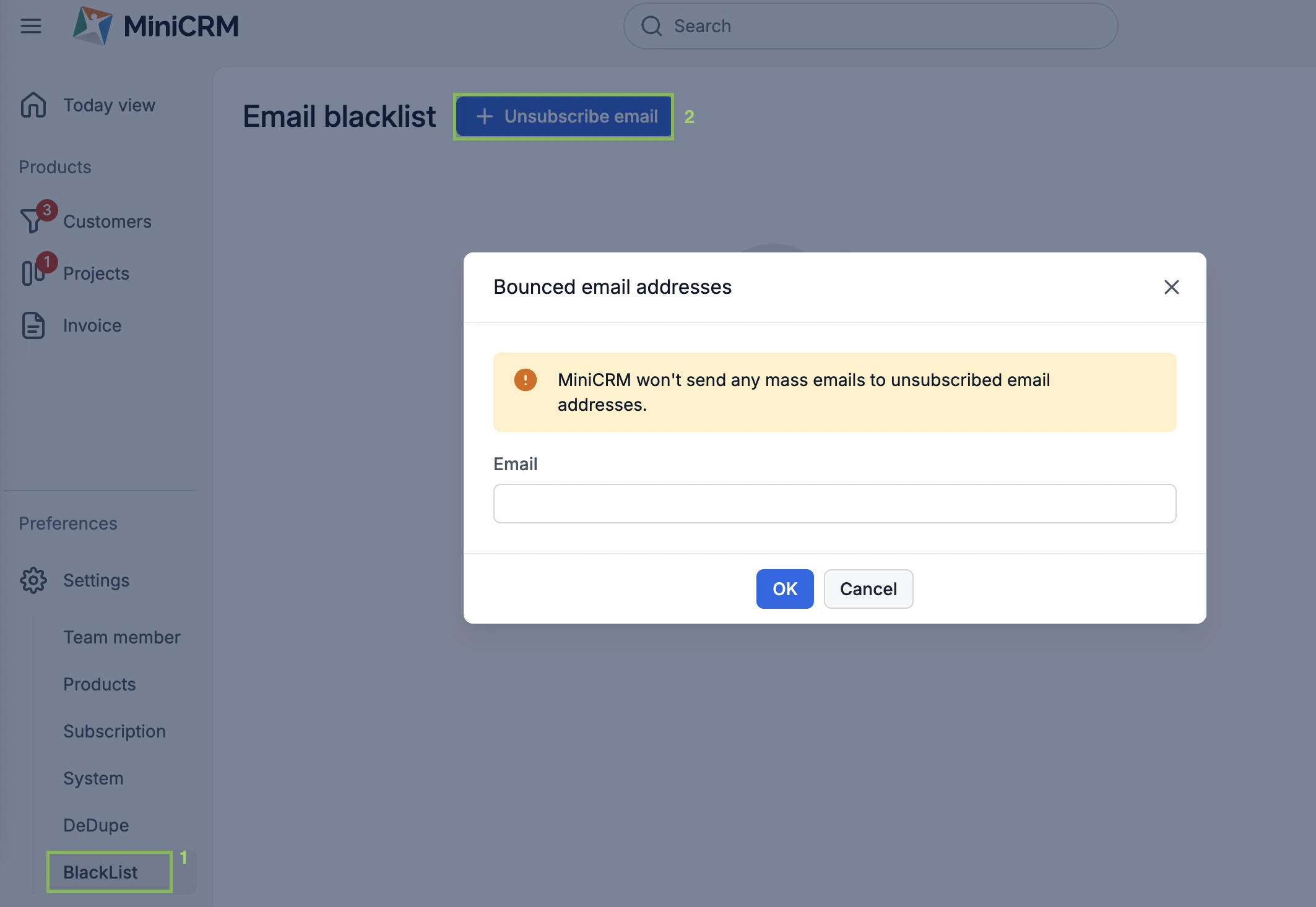
An alternative way to unsubscribe an email address manually:
- Go to Settings/BlackList
- Click on “Unsubscribe email”
- Add the email adress
Summary Checklist
Before you hit send, ask:
- Permission: Did these people say yes?
- Relevance: Did I filter the list to the right segment?
- Goal: Is there ONE clear button/action for them to take?
- Mode: Did I select “Bulk Email” mode?
- Test: Did I check it on my phone?
Ready? Go to your Filter list and send your first offer.