
The 15-Minute Guide to Regaining Control
Stop juggling. Start finishing.
We know the feeling. You are the CEO, the sales team, and the support desk all at once. Your business lives in your head, in three different spreadsheets, and on sticky notes attached to your monitor.
We’ve been there. We built MiniCRM because we needed to stop the chaos in our own small business.
This guide isn’t about learning software. It’s about building a system you can trust, so you can close your laptop on Friday knowing nothing slipped through the cracks.
What “Done” Looks Like
Before we start, imagine this:
Monday Morning: You open one screen. It tells you exactly who to call and who is waiting for a quote. The Feeling: No panic. No digging through emails. Just a clear list. The Result: Your customers are impressed because you never forget a follow-up.
Let’s build this reality in 4 simple steps. No imports. No tech skills required.
Step 1: The “Top 5” Rule (Forget the Spreadsheet)
Don’t try to import your messy spreadsheet yet. That’s overwhelming. Let’s start with quality.
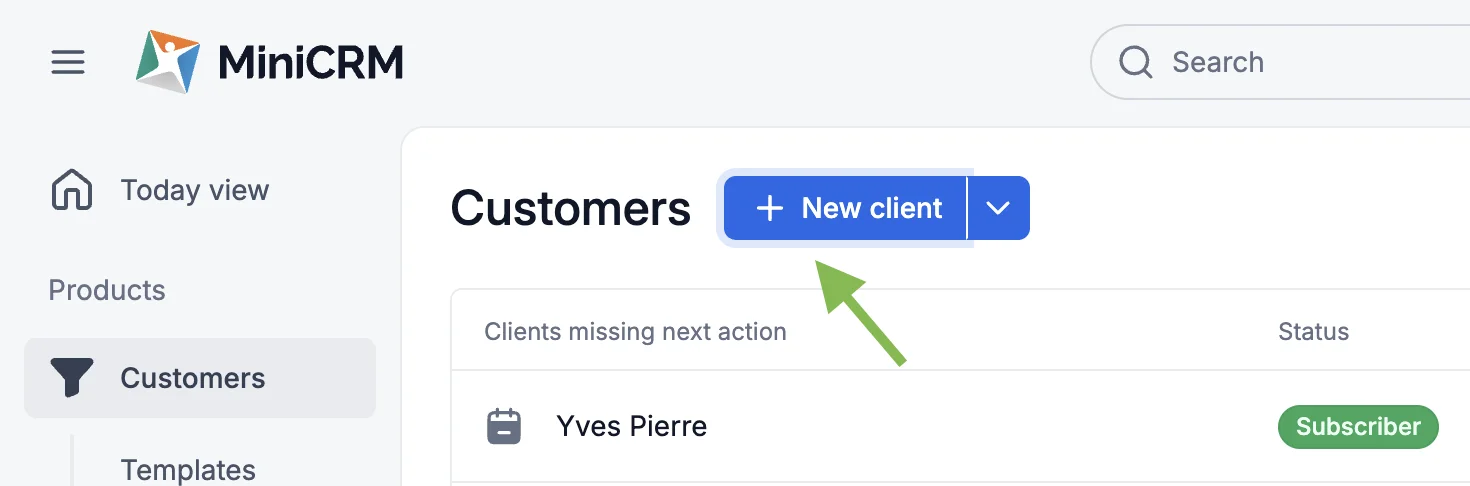
- Click Add Contact.
- Enter the details of 5 people you are actively talking to right now (a hot lead, a current client, or a partner).
- Stop there.
Why this works: You are building a clean, focused list of people that actually generate revenue. You can add the old “maybe” leads later.
Step 2: Offload Your Brain (Notes)
Your brain is for thinking, not for remembering details.
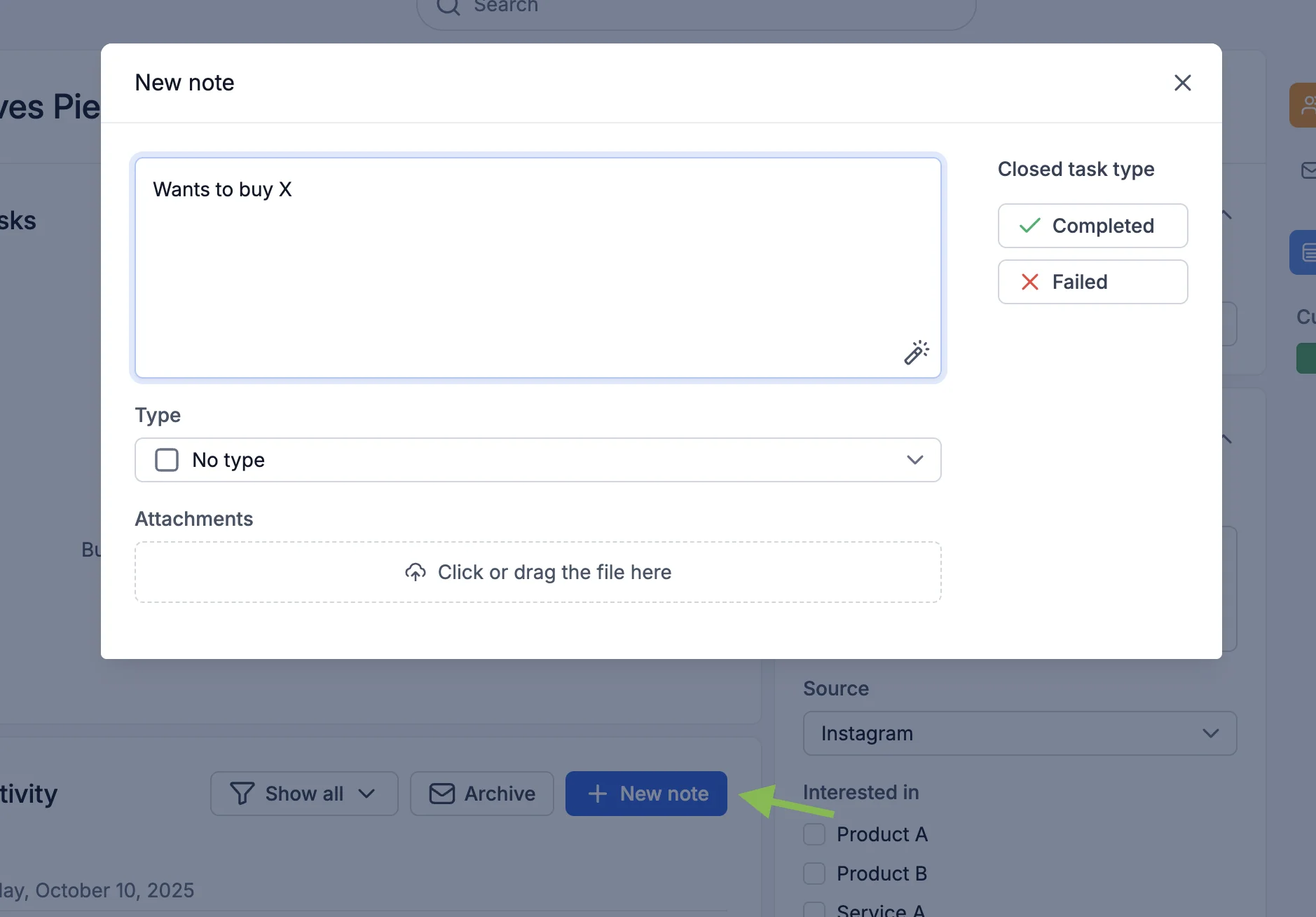
- Open one of your new contacts.
- Add a Note: Write 1-2 sentences about where you left off.
- Example: “Met at the expo in Munich. Interested in the premium package. Need to check stock.”
- Click Save.
The Shift: You just turned a vague memory into a permanent asset. If you get sick tomorrow, the info is safe here.
Step 3: The “One Next Step” Promise
This is the most important rule of MiniCRM: Every contact must have a Next Step. If there is no next step, you aren’t doing business with them.
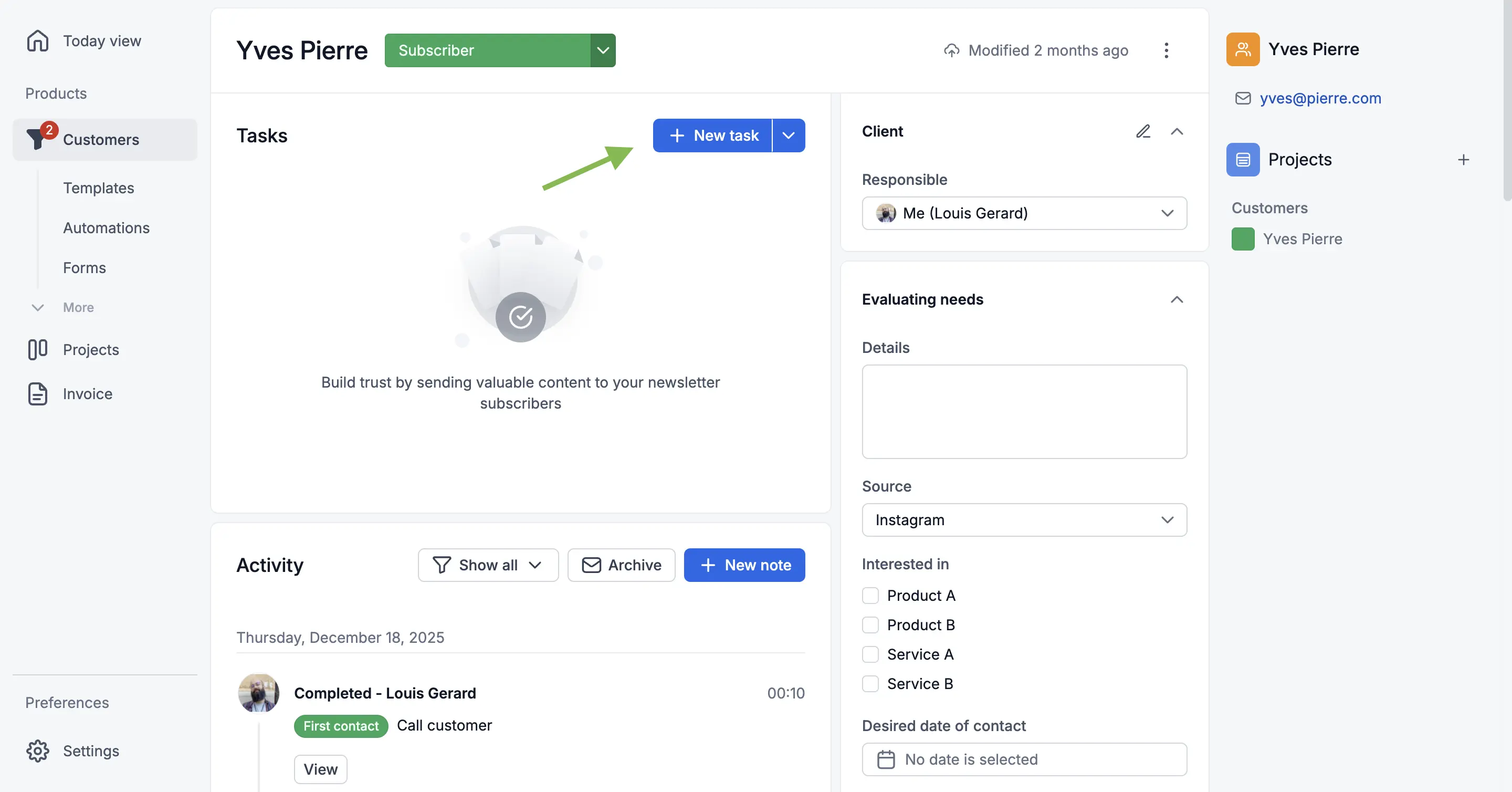
- Look at the contact you just added.
- Ask yourself: “What is the one thing I need to do to move this forward?”
- Set a Task (or Next Step Date):
- “Call to discuss pricing”
- “Send proposal PDF”
- “Follow up on invoice”
- Set the Date for Today or Tomorrow.
Reliability builds trust. By setting a date, you ensure you keep your promises to your customers.
Step 4: Generate the Dopamine (The “Today” View)
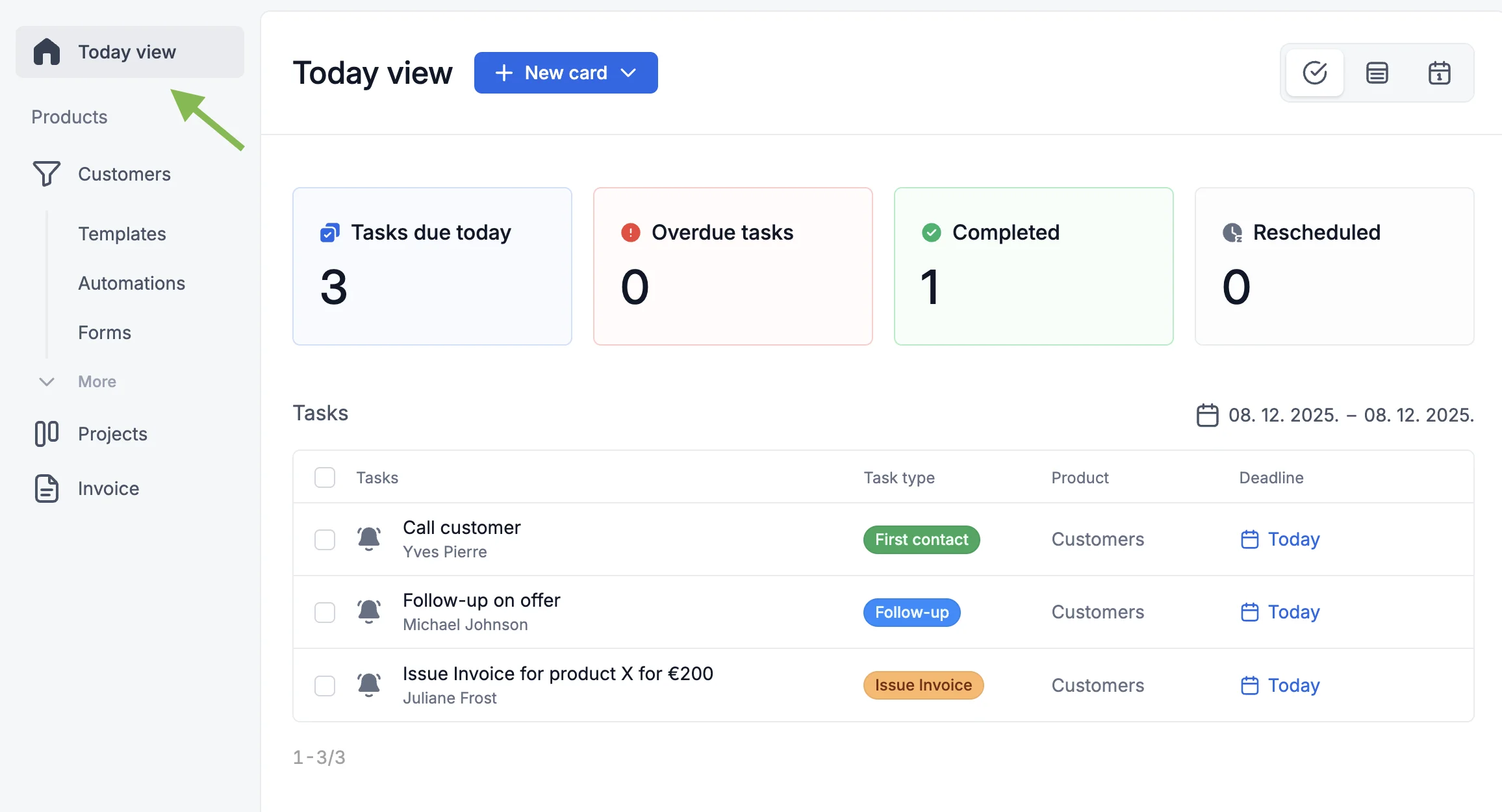
Now, go to the Today view in the menu.
- You will see the tasks you just created.
- Do one of them. Call that person. Send that email.
- Mark the task as DONE.
That feeling of ticking the box? That is control. That is progress.
Your New 5-Minute Routine
You don’t need discipline; you need a habit.
- Morning Coffee (The Review): Open your Today view. This is your boss for the day. If it’s on the list, do it. If it’s empty, you are free to focus on deep work (or go home).
- After Every Call (The Log): Never hang up without typing a quick note and setting the next date.
- “They said call back Tuesday.” -> Set task for Tuesday.
- “They bought it!” -> Move status to Won.
- Friday Afternoon (The Peace of Mind): Scan your list. Are there any red (overdue) tasks? Reschedule them or delete them. Close your week with a clean slate.
Common Worries (We’ve Heard Them All)
- “My data is messy.” Good. Leave the mess in Excel for now. Only add people to MiniCRM when you talk to them. In 2 weeks, your CRM will be full of active data, and the junk will be left behind.
- “I don’t have time to update a CRM.” Searching through your inbox for a phone number takes 5 minutes. Updating MiniCRM takes 10 seconds. You are saving time, not spending it.
- “Is my data safe?” Absolutely. We are a European company. We treat your data with strict GDPR compliance and bank-level security. Your customer lists are your business’s most valuable asset—we lock them in a vault for you.
What Now?
You have 5 contacts, 5 notes, and 5 next steps. You have a working CRM.
Your Goal for Tomorrow: Open the Today view and clear the list.
Welcome to clarity.